Settings
API Keys
SIP Caller allows you to define API Keys to integrate it with external systems. You can define as many API Keys as you need, assigning an expiration and roles. An external system can use the REST API provided by SIP Caller, authenticating with the API Key Token generated as described below.
API Keys require the Enterprise plan.
Required roles
In order to create or edit an API Key, the user needs one of the following roles:
- Administrator
In order to view an API Key, the user needs one of the following roles:
- Account Reader
Create an API Key
To create an API Key:
- Go to “Settings” > “API Keys”, and then click “Create”.
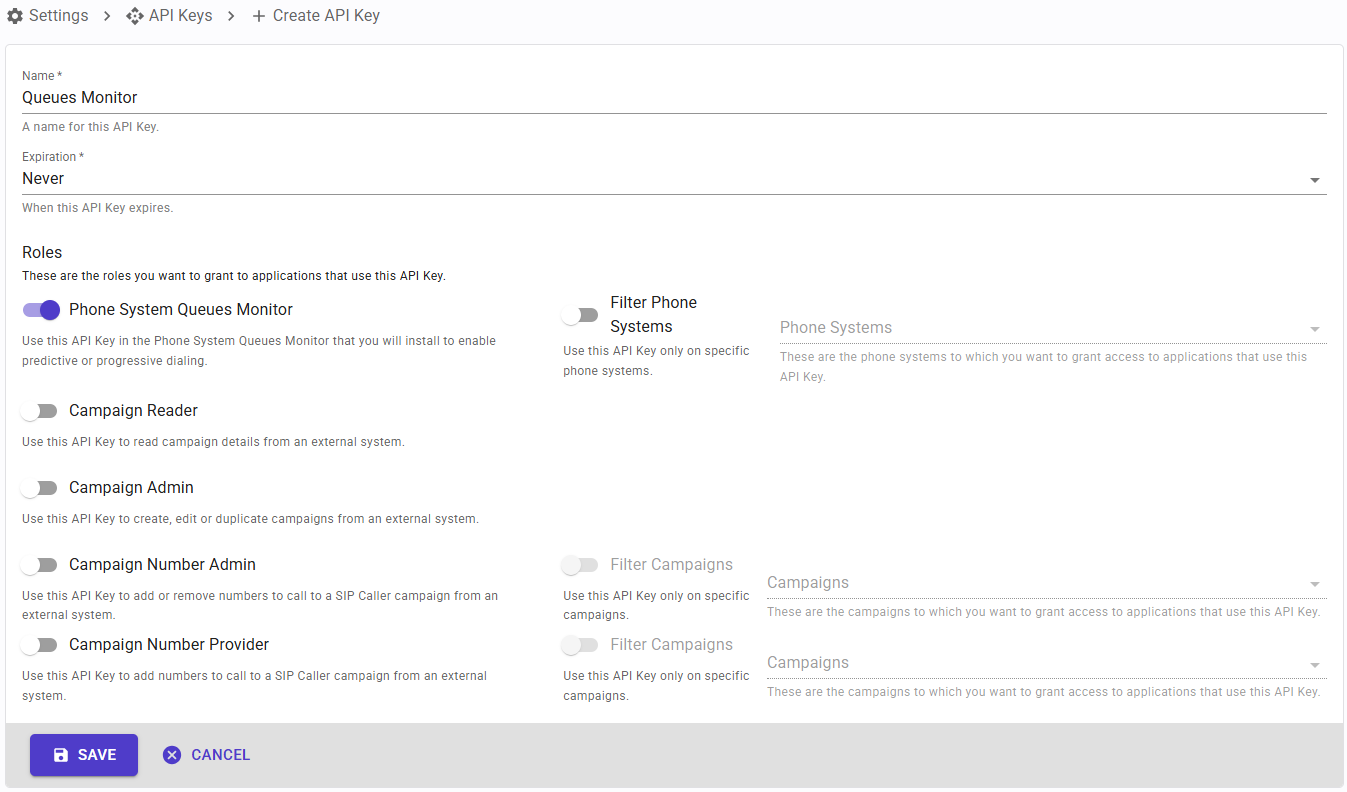
- Specify a name for the API Key.
- Select an expiration. Please note that this can’t be extended once the API Key has been created.
- Enable the roles you want to grant to the applications that will use this API Key. Please note that this can’t be changed once the API Key has been created. The available roles are described in API Key roles.
- Click “Save” to create the API Key.
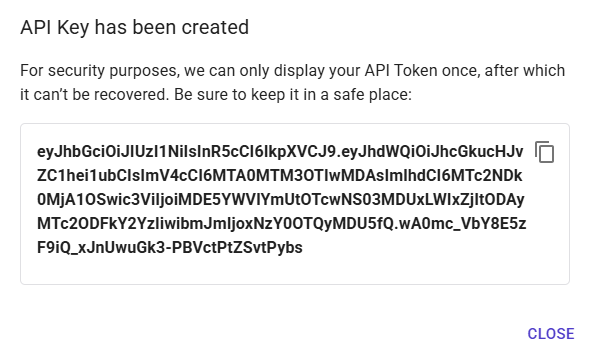
- A dialog will be shown, containing the Token for the API Key just created. Copy the value and save it in a safe place. This token will not be shown again, and it can’t be recovered, as SIP Caller will not store it. If you lose it, you will need to create another API Key.
API Key roles
The roles assigned to an API Key define what the applications using it can do. The available roles are the following:
- Phone System Queues Monitor: this role is required to use the SIP Caller Queues Monitor module and monitor your phone system in real time, for campaigns running in predictive or progressive dialer mode. It can be restricted to specific phone systems.
- Campaign Reader: this role allows read-only access to campaigns, campaign numbers, black lists, contact lists and campaign reports.
- Campaign Admin: this role allows full access to campaigns, campaign numbers, black lists, contact lists and campaign reports.
- Campaign Number Admin: this role allows reading, adding and removing the numbers of a campaign. It can be restricted to specific campaigns.
- Campaign Number Provider: this role allows adding numbers to a campaign, without being able to read or remove them. It can be restricted to specific campaigns.
Grant each application only the roles it needs. For example, a web form that sends new leads to a campaign only needs the Campaign Number Provider role, restricted to that campaign. See the developer documentation for more details.
Edit an API Key
To edit an API Key:
- Go to “Settings” > “API Keys”, and then click on the API Key that you want to edit.
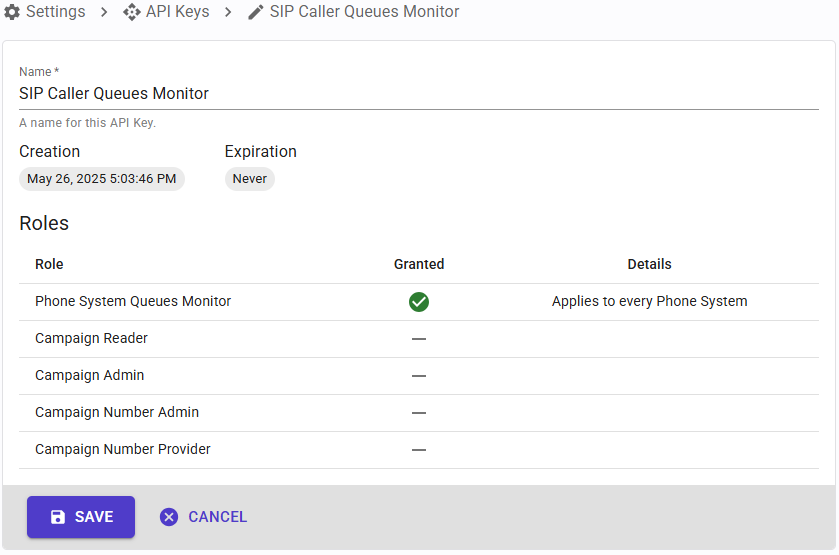
- At this point, you can only edit the name, and visualize the creation and expiration date and time, and the roles assigned to the API Key. If you need to change other values, you will need to create another API Key.
Delete an API Key
When you need to revoke the access of an application to SIP Caller, you will need to delete the API Key. To do that:
- Go to “Settings” > “API Keys”, and then select the API Key that you want to delete.
- Click the Delete button and confirm the operation.