Settings
Campaign Defaults
You can define the default values you want to use when you create new campaigns. For example, if your company works from Monday to Friday in the afternoon, you can configure the working times accordingly, and then any campaign created will be automatically pre-configured with these values.
Required roles
In order to edit campaign defaults, the user needs one of the following roles:
- Administrator
In order to view campaign defaults, the user needs one of the following roles:
- Account Reader
- Operations Manager
- Operations Reader
Editing Campaign Defaults
To edit campaign defaults, go to “Settings” > “Campaign Defaults”.
You can configure default values to be used when creating new campaigns. The configuration is split into 5 tabs:
- General Information
- Working Times
- Call Setup
- Call Handling
- Call Retries
General Information
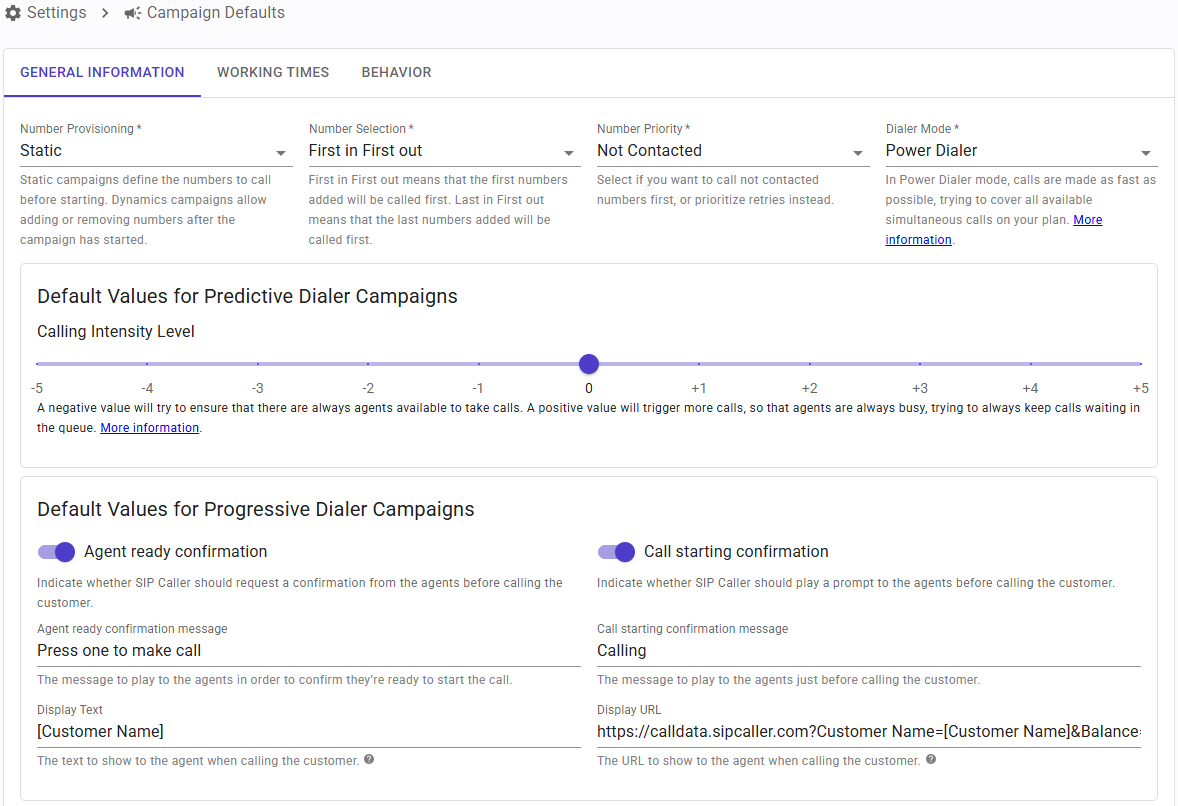
Here you can configure the following fields:
- Number Provisioning: choose if new campaigns should be configured with static or dynamic number provisioning.
- Number Selection: select the default number selection algorithm to use when creating new campaigns.
- Number Priority: select the default number priority setting to use when creating new campaigns. This lets you choose if you want to call not contacted numbers first, or prioritize retries instead.
Working Times
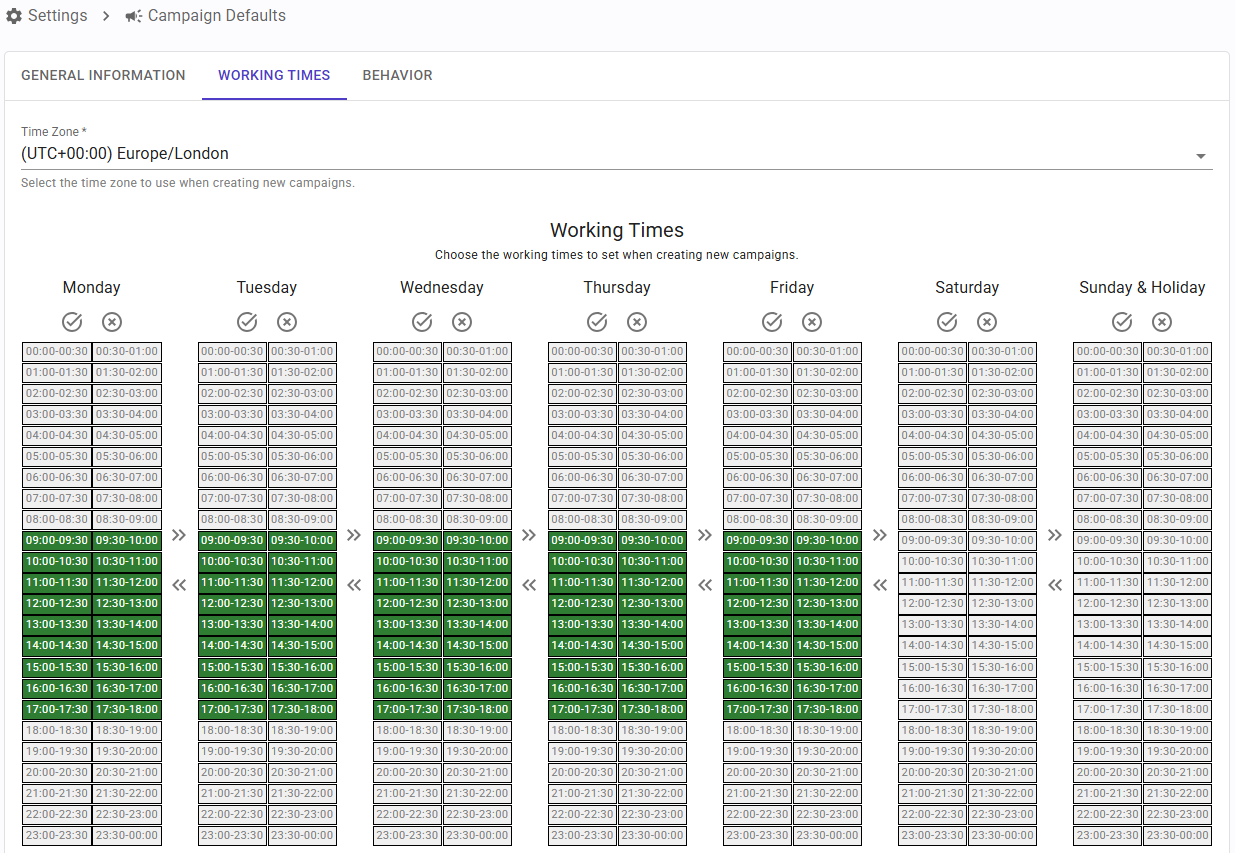
Here you can configure the following fields:
- Time Zone: the selected time zone will be used to determine when the campaign is active, to generate reports, determine holidays, etc.
- Working Times: you can specify the time frames in which the campaign is active. Click a 30 minutes block to toggle its value. You can use the arrow buttons to copy the configuration from one day to another. The values specified here are relative to the time zone specified.
Call Setup
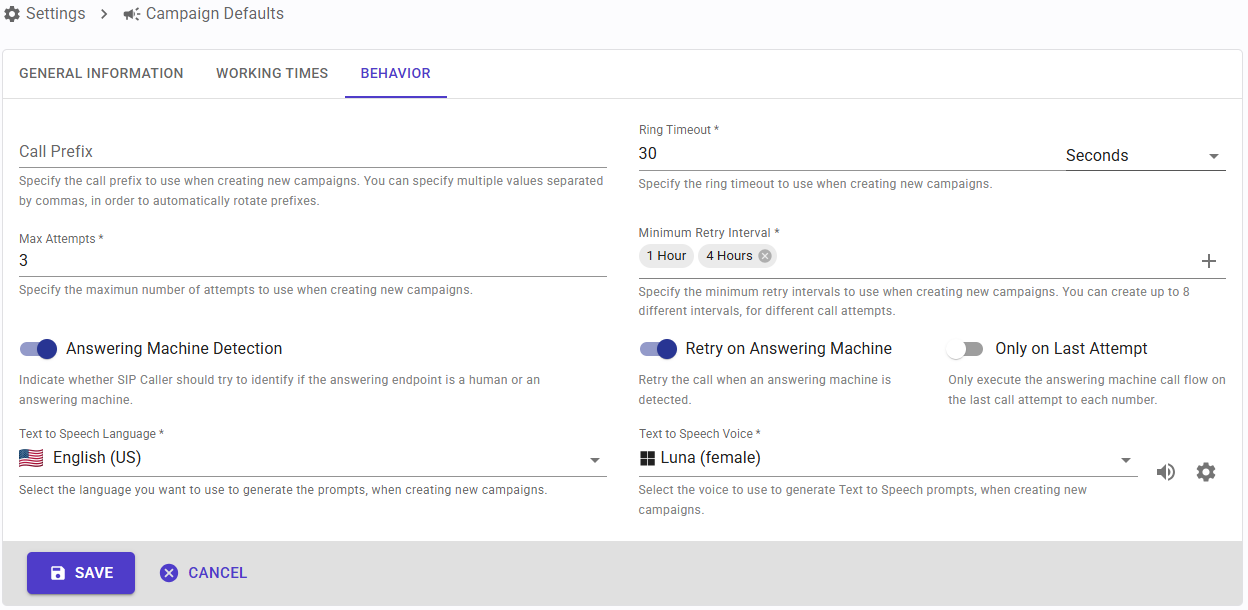
Here you can configure the following fields:
- Call Prefix: SIP Caller will make calls to the numbers you specify. If your Phone System requires a prefix to select an outbound line, then you can specify it here. This prefix will be added to every number before making the call. You can specify multiple values separated by commas, in order to automatically rotate prefixes. This technique allows you to use different routes, trunks or Caller IDs in your Phone System when making calls. You can specify up to 256 different prefixes, each up to 6 characters long (valid characters are digits from 0 to 9, *, # and +).
- Ring Timeout: this is the time to wait for the destination to pick up, before considering that the call attempt has failed due to no answer.
- Mode: select the default dialer mode when creating new campaigns. Choose between Power Dialer, Predictive Dialer or Progressive Dialer.
- Black Lists: define the black lists that you want automatically added to the campaigns you create.
- Calling Intensity Level: when the dialer mode is set to “Predictive Dialer”, this lets you customize the behavior of the dialer. More information here.
- Agent Ready Confirmation: when the dialer mode is set to “Progressive Dialer”, this lets you configure if the agent must press a DTMF key in order to accept the call. This is useful to avoid that an agent who is not ready to take a call accepts it by mistake, or the call goes accidentally to the agent's voicemail, and then SIP Caller initiates the call to the external number when it should not.
- Call Starting Confirmation: when the dialer mode is set to “Progressive Dialer”, this lets you configure if a prompt should be played to the agent just before initiating the call to the external number, so the agent is aware that the call is going to be made.
- Display Text: when the dialer mode is set to “Progressive Dialer” and using 3CX Phone System, SIP Caller can show custom text to the agent using the 3CX Web Client. The text specified here can have static and dynamic parts, using variables.
- Display URL: when the dialer mode is set to “Progressive Dialer”and using 3CX Phone System, SIP Caller can show a custom URL to the agent using the 3CX Web Client. The URL specified here can have static and dynamic parts, using variables.
Call Handling
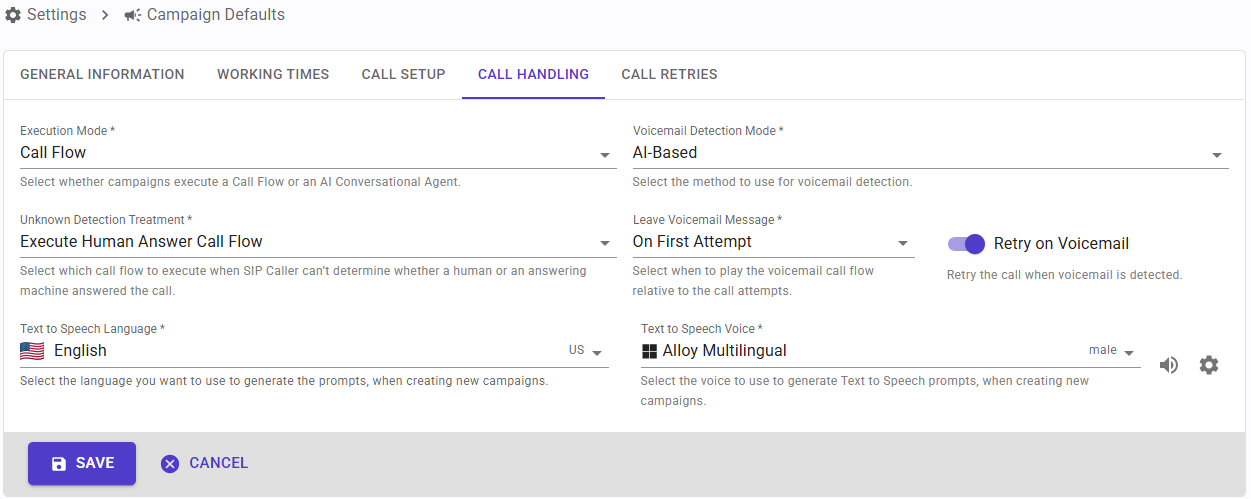
Here you can configure the following fields:
- Call Handling Mode: select whether you want to execute call flows or use an AI conversational agent.
- Voicemail Detection Mode: specify if you want to keep the voicemail detection disabled, use the standard voicemail detection algorithm, or use AI-Based Voicemail Detection.
- Unknown Detection Treatment: specify how you want to treat calls where SIP Caller can't identify who answers the call. You can choose to execute the Human Answer call flow or the Voicemail call flow.
- Leave Voicemail Message: specify when you want to leave a voicemail. Options are:
- Never: when you just want to drop the call when a voicemail is detected.
- On First Detection: to leave a message only the first time a voicemail is detected for this number.
- On Last Attempt: to leave a message only in the last attempt calling this number.
- On Every Attempt: to leave a message every time a voicemail is detected.
- Retry on Voicemail: you can use this setting to define if a call answered by a voicemail should be retried or not.
- Text to Speech Language: you can choose the language to use when selecting a voice for text to speech.
- Text to Speech Voice: you can choose the voice to use when converting text to speech. There are plenty of voices that you can use, in many different languages, from Google Cloud or Microsoft Azure. You can listen to the selected voice to know how it feels, right from the SIP Caller console.
Call Retries
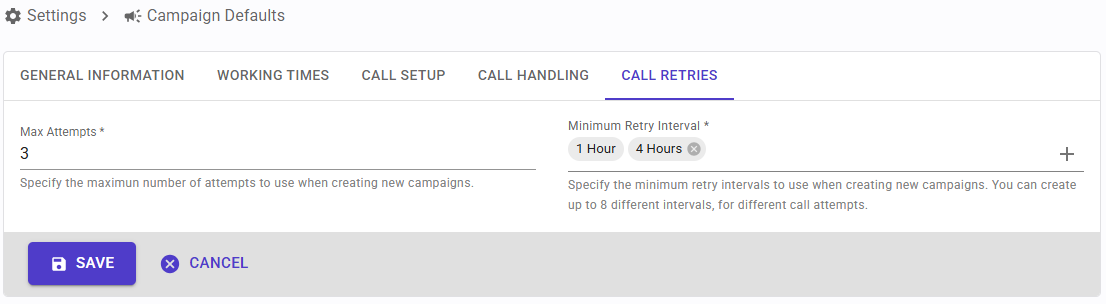
Here you can configure the following fields:
- Max Attempts: the maximum number of times a number can be contacted, in case of failed attempts (destination busy, no answer, etc.).
- Min Retry Interval: this is the minimum time interval between call attempts. For example, if you specify 1 hour, then the contact will not be called again during 1 hour after a failed attempt. However, the retry could take longer. You can define up to 8 different intervals, in case you need different wait times for different call attempts.