Settings
MCP Servers
An MCP Server (Model Context Protocol Server) is a service that exposes a set of tools an AI agent can use during a conversation. By connecting SIP Caller to MCP Servers, your AI Conversational Agents can integrate with external systems while they talk to your contacts: for example, checking availability and booking an appointment in a calendar, looking up or updating a contact in a CRM, or checking the status of an order.
Many services already publish their own MCP Server, and their documentation provides the URL and the authentication method to use. Once an MCP Server is created in SIP Caller, you choose which of its tools each AI Conversational Agent may use when you configure the agent.
To manage MCP Servers, go to "Settings" > "MCP Servers".
Creating an MCP Server
When creating an MCP Server, you configure it in two tabs: General and Authentication. Once you save it, the MCP Server is opened again with all its tabs: Authentication, to connect it when it requires authorization, and Tools, Instructions and Usage. If the MCP Server uses OAuth 2.0 or Automatic Registration, the Authentication tab is shown first, so you can connect it; otherwise, the Tools tab is shown.
General
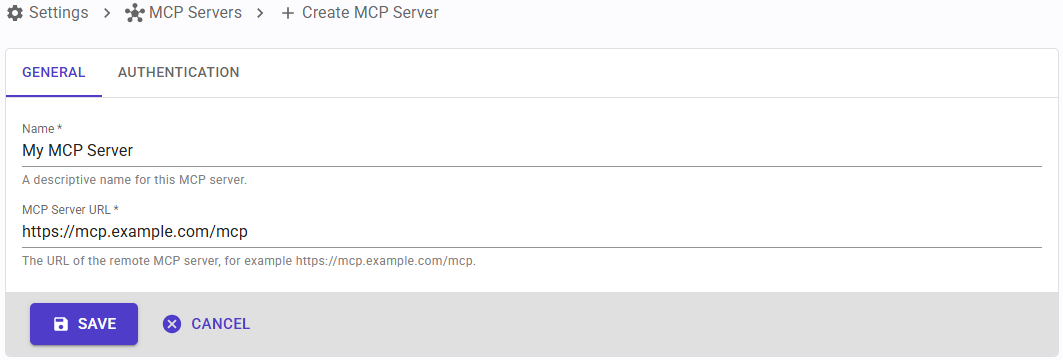
In the General tab, configure the following fields:
- Name: a descriptive name to identify this MCP Server.
- MCP Server URL: the URL of the remote MCP Server, as provided by the MCP Server documentation, for example
https://mcp.example.com/mcp.
Authentication
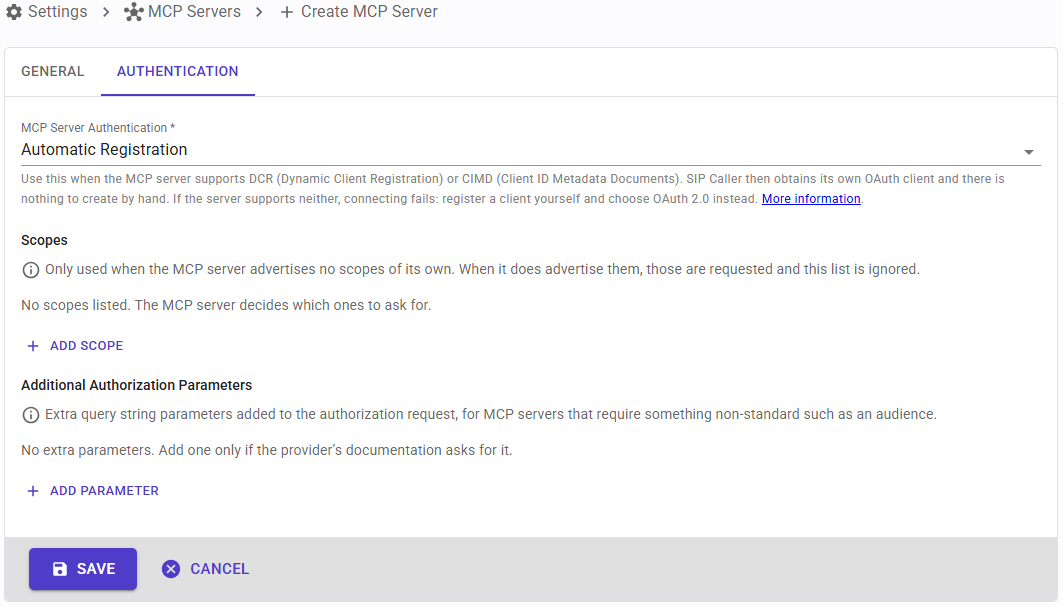
In the Authentication tab, select the MCP Server Authentication: how SIP Caller authenticates with the MCP Server. The available methods are described below, and each one asks for its own parameters.
None
Use this method when the MCP Server accepts requests without authentication. Nothing is sent with the requests, so if the MCP Server rejects them as unauthorized, you need to select one of the other methods. No additional parameters are required.
Request Headers
Use this method when the MCP Server authenticates with a fixed key or token that you create in its own dashboard, and that must be sent in a request header, such as X-API-Key or Authorization. Add one or more headers, each one with:
- Header: the name of the header, for example
X-API-Key. - Value: the value of the header, for example the API key provided by the MCP Server.
These headers are added to every request that SIP Caller sends to the MCP Server. At least one header is required.
OAuth 2.0
Use this method when the MCP Server requires standard OAuth 2.0, and you register the OAuth client yourself. First, create an OAuth client with the MCP Server (or with the authorization server it uses), and then configure the following parameters:
- Client ID: the client ID of the OAuth client registered with the MCP Server.
- Client Secret: the secret of that OAuth client. Leave it empty if it's a public client.
- Redirect URI: this value is shown by SIP Caller and can't be changed. Copy it and register this exact address as the redirect URI of your OAuth client, since this is where the MCP Server sends the browser back once you grant access.
- Scopes: optional. The scopes to request during the authorization. They are only used when the MCP Server doesn't advertise scopes of its own; when it does, those are requested and this list is ignored.
- Additional Authorization Parameters: optional. Extra parameters added to the authorization request, for MCP Servers that require something non-standard, such as an audience. Add them only if the MCP Server documentation asks for them.
Automatic Registration
Use this method when the MCP Server supports DCR (Dynamic Client Registration) or CIMD (Client ID Metadata Documents). In this case, SIP Caller obtains its own OAuth client automatically, so there is nothing to create by hand, and no Redirect URI to register. If the MCP Server supports neither, connecting fails; in that case, register an OAuth client yourself and select OAuth 2.0 instead.
The optional Scopes and Additional Authorization Parameters described for OAuth 2.0 are also available with this method.
Managing an MCP Server
Once the MCP Server is created, click on it in the list of MCP Servers to open it. In addition to the General and Authentication tabs described above, the Tools, Instructions and Usage tabs are shown.
Connection
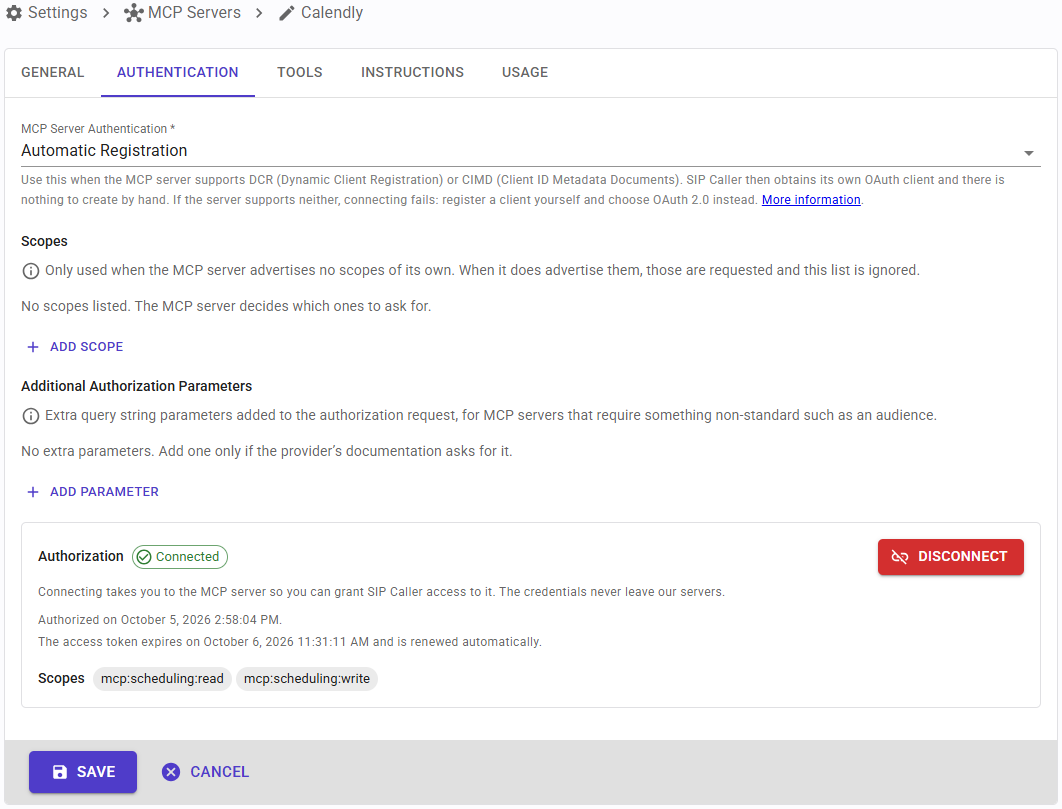
When the authentication method is OAuth 2.0 or Automatic Registration, the Authentication tab also shows the Authorization panel, with the connection status of the MCP Server:
- Connected: SIP Caller has been granted access to the MCP Server.
- Not connected: the MCP Server has never been connected, or it was disconnected.
- Waiting for authorization: the authorization has been started, and SIP Caller is waiting for you to grant access in the MCP Server consent screen.
- Completing the authorization: access has been granted, and SIP Caller is completing the authorization with the MCP Server.
- Failed: the authorization failed, or the access token could not be renewed.
Click "Connect" to be taken to the MCP Server consent screen, where you can grant SIP Caller access to it. Once you grant access, you're taken back to SIP Caller and the MCP Server is shown as connected, along with the date it was authorized, when the access token expires, and the scopes that were granted. The credentials never leave SIP Caller servers, and the access token is renewed automatically before it expires.
Click "Disconnect" to remove the authorization. To grant access again, for example with different scopes, disconnect the MCP Server and connect it again.
If an MCP Server used by an AI Conversational Agent is not connected, its authorization expired and could not be renewed, or its tools could not be read, the campaigns using that agent won't make calls, and the Campaign Activity Indicator will show "MCP Server Not Available".
Tools
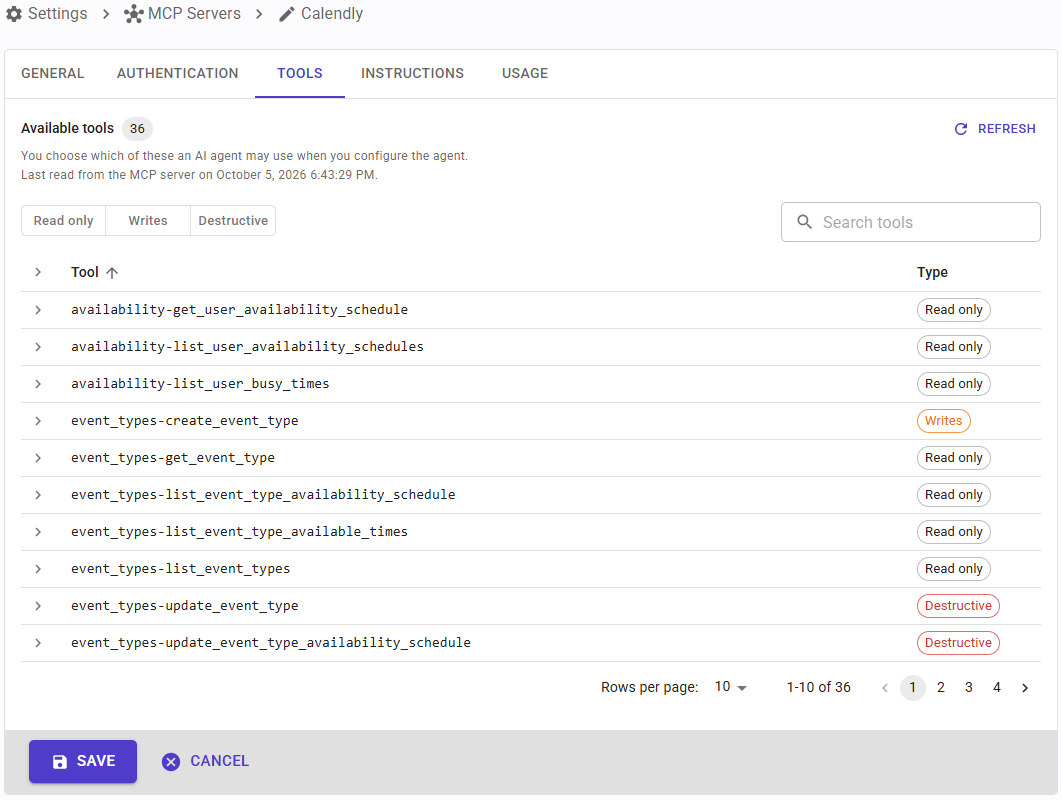
The Tools tab shows the tools published by the MCP Server, as of the last time they were read from it, along with the date and time of that last read. For each tool, the list shows its name and type:
- Read only: tools that only read information.
- Writes: tools that create something, for example a new appointment or contact.
- Destructive: tools that change or delete existing data.
You can filter the list by type, search the tools by name, and expand each tool to see its description and arguments.
Click "Refresh" to read the list of tools from the MCP Server again, for example after the MCP Server added new tools. When the MCP Server requires authorization, the tools can only be read once it's connected.
When you configure an AI Conversational Agent, you choose which of these tools the agent may use.
Instructions
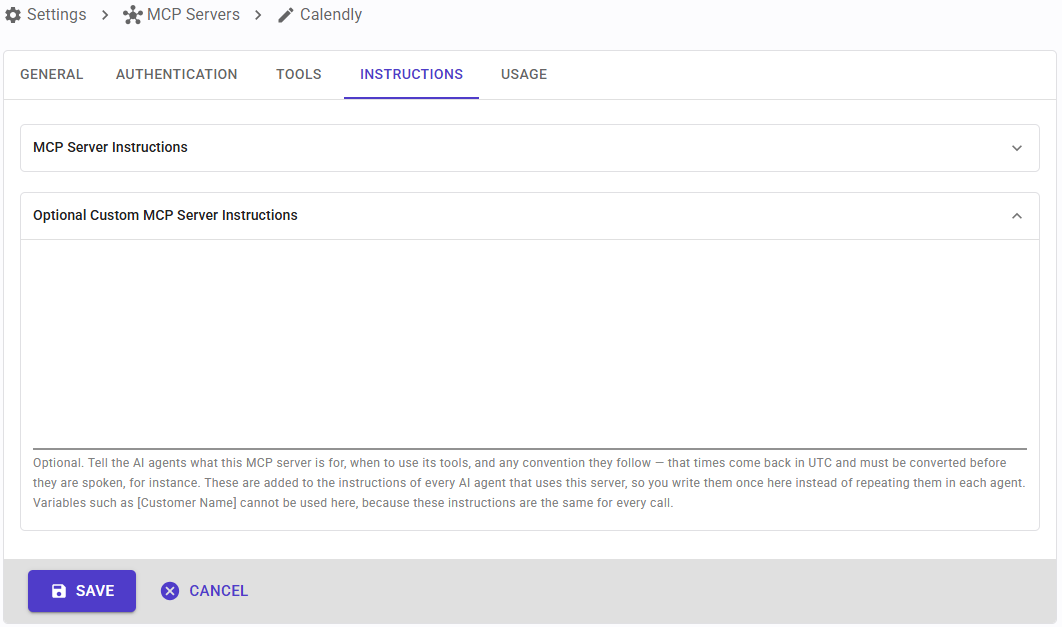
The Instructions tab shows two sections:
- MCP Server Instructions: the instructions published by the MCP Server itself, if any. They're read from the MCP Server along with its tools, and they can't be edited. These instructions are given to every AI agent that uses this MCP Server, before your own instructions.
- Optional Custom MCP Server Instructions: your own instructions for the AI agents. Here you can tell them what this MCP Server is for, when to use its tools, and any conventions they should follow, for example, that the times returned by the MCP Server are in UTC and must be converted before they are spoken.
Your custom instructions are added to the instructions of every AI agent that uses this MCP Server, so you write them once here instead of repeating them in each agent. Variables such as [Customer Name] can't be used here, because these instructions are the same for every call. You can change them at any time, even while the MCP Server is being used by active campaigns.
Usage
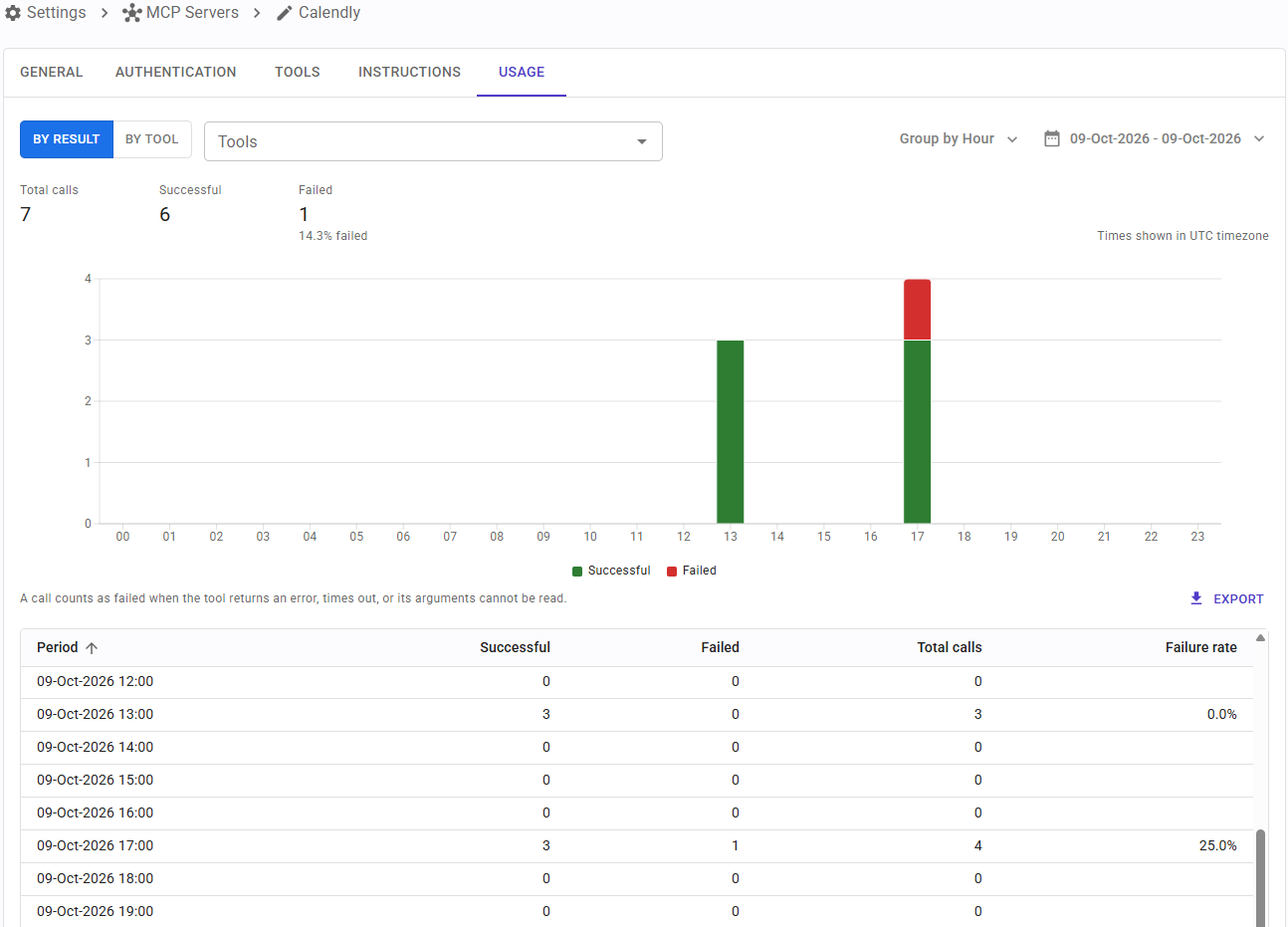
The Usage tab shows how the tools of this MCP Server have been invoked by your AI agents. By default it shows the last 7 days, and the controls above the chart let you choose what to see:
- By result or By tool: how the chart, the grid and the export split the invocations.
- Tools: include only the selected tools; for example, select a single tool to see its usage alone. Leave it empty to include all the tools.
- Group by: group the usage by hour, day, week, month or year.
- Date range: select the period to show, from the day the MCP Server was created until today. A range of one or two days is grouped by hour and a longer one by day, unless you choose a different grouping.
All dates and times are shown in the UTC timezone, which is how the usage is stored.
Above the chart, a summary shows the total, successful and failed invocations for the selected period, including the percentage of failed invocations. The chart shows the invocations of each period:
- By result: successful and failed invocations, added up across the selected tools. This helps you understand if the MCP Server is working as expected.
- By tool: the invocations of each tool. This helps you understand which tools your AI agents are actually using. The seven most invoked tools are shown individually, and the rest are grouped as "Other".
An invocation counts as failed when the tool returns an error, times out, or its arguments can't be read.
Click a bar of the chart to see that period in more detail: a year is shown by month, a month or a week by day, and a day by hour. The "Back to previous date range" button takes you back to the date range you came from. Choosing a different date range or grouping starts over.
Under the chart, a grid shows the invocations of each period, split as in the chart: By result, the successful and failed invocations, the total and the failure rate; By tool, the invocations of each tool and the total, with every tool shown individually, including the ones grouped as "Other" in the chart. You can sort the grid by any column. The "Export" button downloads the same columns to a CSV file, one line per period, except for the failure rate.
If no tool of this MCP Server has been invoked in the selected period, a message is shown instead of the chart.