Campaigns
Add Numbers to a Campaign
Once the campaign is created, you will be asked to add the numbers to call. You can add numbers in different ways:
- Upload numbers from a CSV or text file.
- Enter the numbers to call in a text box.
- Add numbers from an existing contact list.
- Use the REST API to add numbers programmatically (requires Enterprise Edition).
Upload numbers from a CSV or text file
 In order to upload the numbers to call from a CSV or text file, select the option “Upload File”. Then click on the box on the right to open the file selection dialog, and choose the file containing the numbers to call. You can also use drag & drop, selecting the file in the file explorer, and dragging it into the box.
The CSV file to upload must contain each number in a new line. You can upload a CSV file containing phone numbers only, or also containing data associated with that number, for example a customer name, an appointment date, and so on. This associated data can be used to play personalized prompts on each call. The first line of the file might optionally be a header with column names.
For example, a file containing only numbers would look like this:
+18035551001
+18035551002
+18035551003
+18035551004
+18035551005
+18035551006
And a file containing numbers and data, also including a header line, would look like this:
Phone Number,Customer Name,Due Balance
+18035551001,Jane Clarke,$523.26
+18035551002,Peter Smith,$852.05
+18035551003,Clara White,$350.00
+18035551004,Stefan Robertson,$99.00
+18035551005,Millie Watson,$118.49
It's also possible to add multiple numbers on a single line, separated by semicolons (;). You can specify up to 15 number per contact. For example:
+18035551001;+18035552001
+18035551002;+18035552002
+18035551003;+18035552003
+18035551004;+18035552004
+18035551005;+18035552005
+18035551006;+18035552006
Or with variables:
Phone Numbers,Customer Name,Due Balance
+18035551001;+18035552001,Jane Clarke,$523.26
+18035551002;+18035552002,Peter Smith,$852.05
+18035551003;+18035552003,Clara White,$350.00
+18035551004;+18035552004,Stefan Robertson,$99.00
+18035551005;+18035552005,Millie Watson,$118.49
When a record has multiple numbers, SIP Caller will attempt to call each number in the order they appear, until one of them answers. When a successful connection is made to one of the numbers, SIP Caller will stop calling the rest.
 Once the file is uploaded, the content will be analyzed, and a preview will be shown, so you can confirm that the data is being processed correctly. In case of errors in the data uploaded, a clear message will be shown explaining what’s wrong. Finally, clicking “Add Numbers” will start the upload procedure, a progress bar will indicate the overall progress, and a dialog will be shown when the upload is complete.
Enter the numbers to call in a text box
When you need to add a reduced set of numbers to call, you can just copy them into a text box, no need to use a text file. This procedure is limited to 16384 characters in the text box, if more data is needed, please use the file upload approach.
 To add numbers in this way, select the “Manual Entry” option. A text box will be shown in the next step, where you can add the numbers to call, and also data associated with each number, if needed. The format to use here is the same as the format required for “File Upload”.
Add numbers from an existing contact list
SIP Caller lets you define reusable contact lists (requires Professional or Enterprise Edition). This is a list of numbers to call, with optional values associated with each number, which you can reuse in multiple campaigns. These optional values might be the contact name, the customer’s due balance, an expiration date, and so on. This information is different for each number, and lets you play personalized prompts in each call.
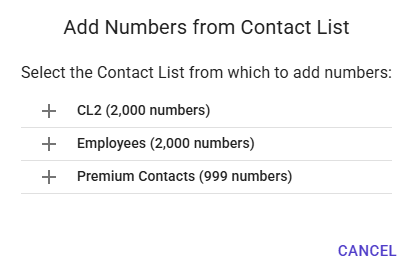
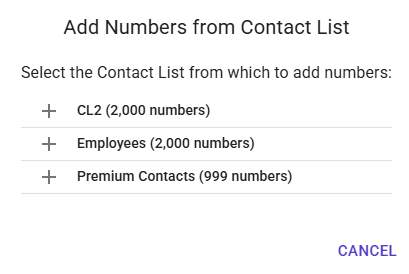 When adding numbers to call for a campaign, you can choose to get the numbers from an existing contact list. A dialog will let you select a contact list among all the ones you have in your account.
Sending DTMF to bypass IVR menus
When a call is answered, sometimes the destination has an IVR menu that must be navigated before reaching the desired person. SIP Caller can send DTMF tones to navigate through these menus. You can configure this using a special syntax when specifying each number to call:
- Use the
pcharacter to insert a pause of 2 seconds before sending the next DTMF tone. You can use multiplepcharacters to insert longer pauses. - Use any digit from 0 to 9, the
*character, or the#character to send the corresponding DTMF tone.
For example, if you need to call the number +18035551001, and once answered you need to wait 4 seconds, then press 1, wait 2 seconds, press 3, wait 2 seconds, and finally press 5, you would enter the following string as the number to call:
+18035551001pp1p3p5SIP Caller will start the answering machine detection procedure after sending the last DTMF tone.