Settings
Webhooks
SIP Caller can trigger webhooks in order to notify external systems about events that happen on our platform. In this way, many useful custom integrations can be developed between SIP Caller and other systems. Webhooks require the Enterprise plan.
The procedure involves 2 steps:
- Create a webhook.
- Configure a campaign with an existing webhook.
Create a webhook
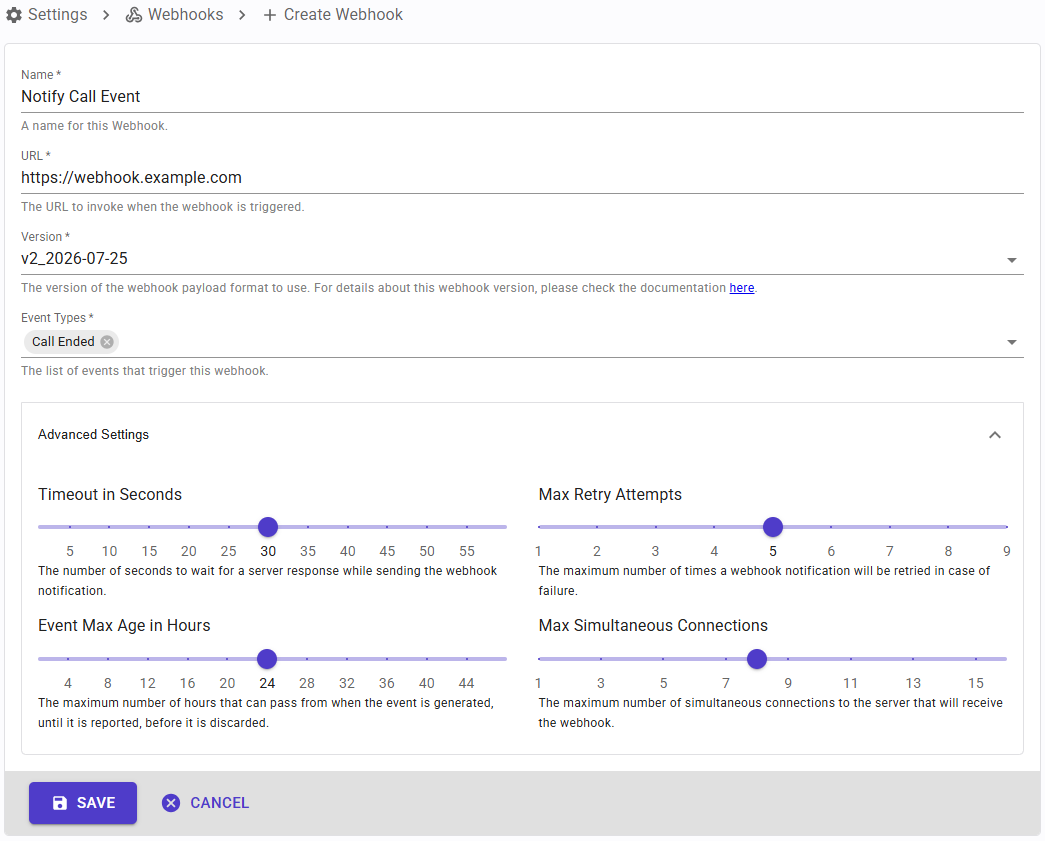 In order to create a webhook, login to SIP Caller and go to Settings > Webhooks. Then click the “Create” button to open the Webhook creation dialog and proceed as follows:
- Enter a friendly name for the webhook, so you can easily select it later.
- Enter the URL that you want SIP Caller to invoke when the events occur.
- Select the version. We recommend using the latest version to leverage the latest features, but you can also select an older version for backward compatibility.
- Select the events you’re interested in. The available events are described in Event types.
- Configure the advanced settings according to your needs. When you create a webhook, they have the following default values:
- Timeout: 30 seconds. The time SIP Caller waits for your endpoint to respond.
- Max retry attempts: 5. The maximum number of times SIP Caller tries to deliver each event.
- Event max age: 24 hours. Events waiting to be sent for longer than this, for example while the webhook is disabled, are discarded.
- Max simultaneous connections: 8. The maximum number of requests SIP Caller sends to your endpoint at the same time.
Event types
A webhook can notify the following events:
- Campaign Activated: a campaign is activated, by a user from the SIP Caller console or by an application through the REST API.
- Campaign Paused: an active campaign is paused.
- Campaign Resumed: a paused campaign is activated again.
- Campaign Canceled: a campaign is canceled.
- Campaign Finished: a campaign finishes.
- Call Ended: a call made by a campaign ends, whatever its result.
The campaign events contain the campaign configuration, and, when the change was made by a user or an application, the origin of the change. The Call Ended event contains the call details: the number called and its variable values, the ring and answer results, the durations, the results of the interactions with the contact (such as DTMF inputs or AI agent goals), the transfer details, and the final outcome of the call, including when it will be retried. This is the event to use to update your own systems, such as a CRM, with the result of every call.
Delivery and retries
Each event is sent as an HTTP POST request to the webhook URL, with a JSON payload and the “Sip-Caller-Signature” header, so your endpoint can validate that the request was sent by SIP Caller.
The delivery is successful when your endpoint responds with a 2xx HTTP status code within the configured timeout. When the endpoint responds with any other status code, doesn't respond in time, or can't be reached, the delivery fails, and SIP Caller retries it automatically: the first retry is made 5 minutes after the failed attempt, the second one 1 hour after, the third one 4 hours after, and each following retry waits 4 hours more than the previous one, until the max retry attempts are reached. After the last attempt, the event is marked as failed.
Every delivery attempt is recorded, along with its result, the response code and the response time, so you can check the status of each event as described in Webhook troubleshooting.
Configure a campaign to trigger webhooks
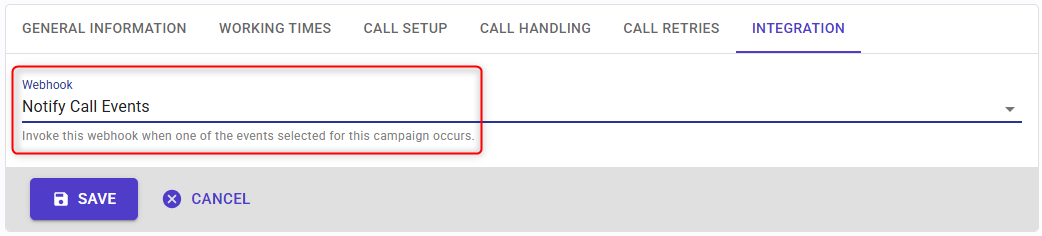 Once the webhook is created, you need to configure the campaigns to use it. To do this, just select the webhook from the Integration tab.
Enable and disable webhooks
If you find an issue while processing the webhooks triggered by SIP Caller, you can pause the generation of these events. When you do this, SIP Caller will queue these events during the time you configured when you created it, giving you time to fix your event processing algorithm, so you can then enable the webhooks again. To do this, go to Settings > Webhooks, and select the “Enable” or “Disable” buttons from the Actions column.

Regenerate the signing secret
From the Actions column in the webhook list, you can also click the button to regenerate the signing secret. This will cause SIP Caller to start signing the webhooks using the new secret. Any integration you have using the old secret will stop working, as the validation will fail, so you need to be careful when performing this action.
Validate webhook signature
Every webhook notification sent by SIP Caller will have the header “Sip-Caller-Signature” in the HTTP request, set to a value similar to the following:
t=1728776932,v1=df9da282f3ffe9a7d855cc11589d86d33852ee0bbc1abaacab854c7f52e6efae
The value assigned to “t” is a timestamp informing when the event was generated. The value assigned to “v1” is the webhook signature. You will need both values to do the verification, as follows:
- Concatenate the timestamp (as a string), a dot (.), and the JSON payload received in the HTTP request body. For example:
1728776932.{"id" : "01928322-860c-77f9-9c3b-7f8abe3b6afd".......}
- Calculate the expected webhook signature, by computing an HMAC using the SHA256 hash function. Use the webhook signing secret as the key, and the value resulting from the concatenation in the previous step as the message.
- Compare the calculated webhook signature with the value taken from “v1” in the request header. If both values match, then you can safely proceed with the processing of the webhook event.
We have created code examples showing how to do this validation in a Python or .NET application.
Webhook troubleshooting
From the SIP Caller console > Settings > Webhooks, you can click on a webhook and check all the events that were notified.
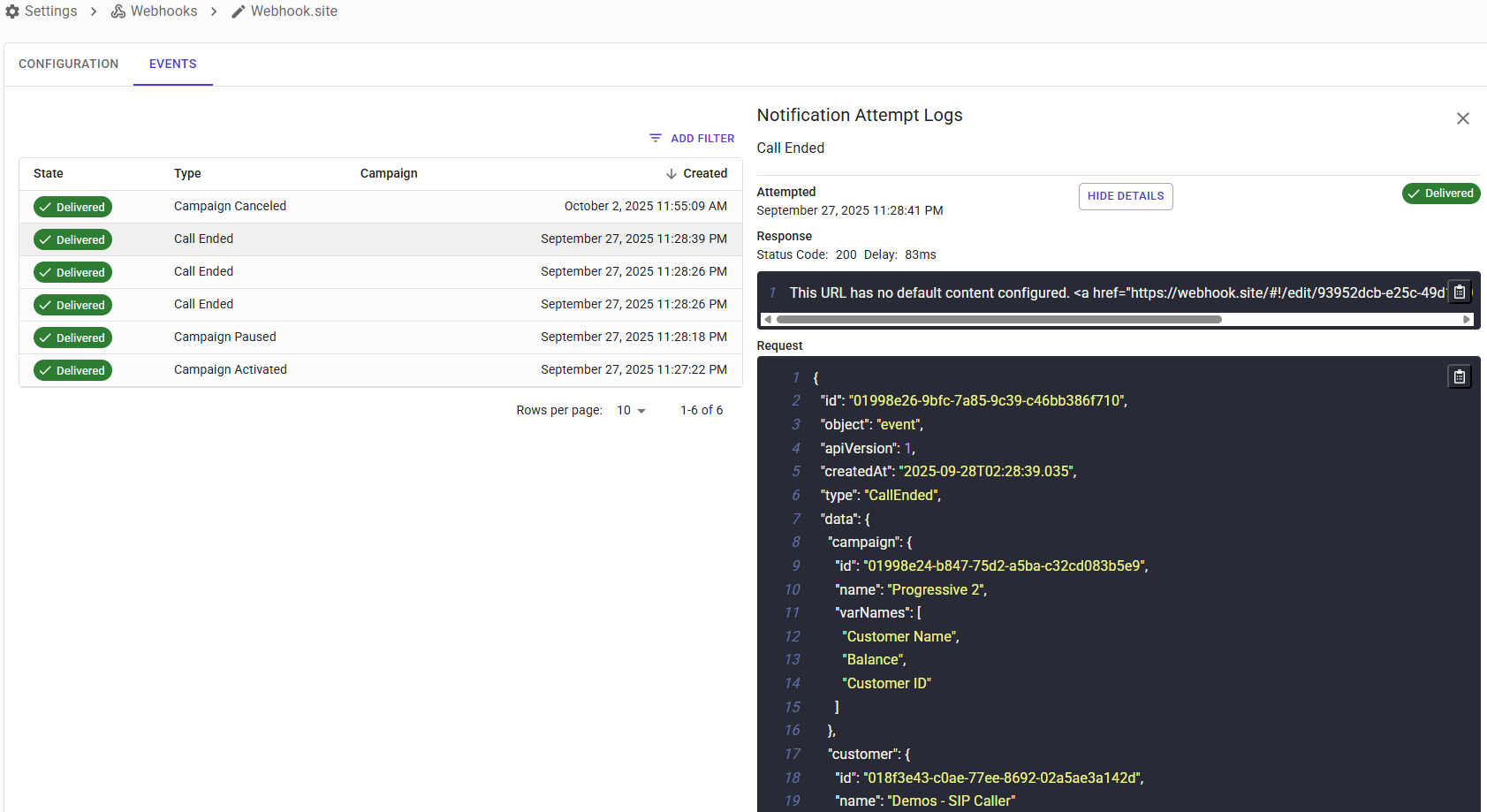 The list can be filtered in order to identify the event you’re looking for. Then, when an event is clicked, a panel will be shown on the right side, with the details of each notification attempt.
Webhooks data reference
The webhooks generated by SIP Caller are HTTP POST requests, containing JSON as payload, and every request is tagged with a version so we can evolve the payload format over time without breaking existing integrations. The full JSON reference for each event type and version is available on the Webhook Data Reference page.